Payment and support settings
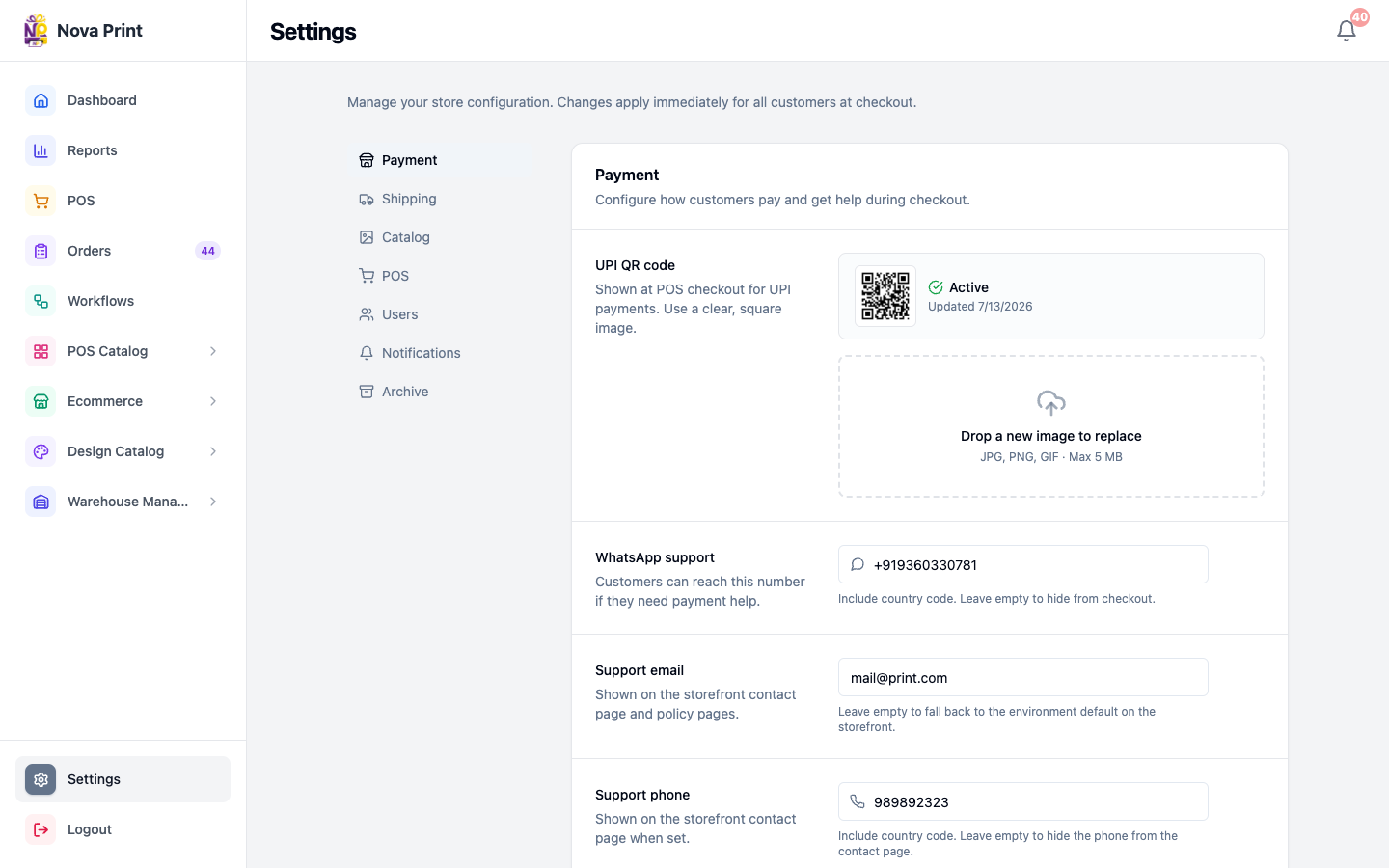
Configure the store-wide UPI QR used at counter POS checkout, plus WhatsApp and support contact details shown to customers. These live on Admin Settings → Payment — not on Ecommerce Payment Options (COD / Razorpay).
Who and where
- Roles: Admin
- Route:
/settings(default tab) or/settings?tab=payment - Nav: Sidebar → Settings → Payment
Section copy: Payment — Configure how customers pay and get help during checkout.
| Setting | Used where |
|---|---|
| UPI QR code | In-person POS Complete Payment / Update Order modal |
| WhatsApp support | Payment help line on POS/checkout payment UIs when set |
| Support email | Ecommerce contact page and policy pages |
| Support phone | Ecommerce contact page when set |
POS terminals also have a separate Payment QR for customer-link checkout — POS settings and UPI QR. Ecommerce COD/Razorpay toggles are under Ecommerce payment and shipping.
1. Open Payment settings
- Sign in to Admin as an administrator.
- Open Settings (
/settings). - Confirm the left nav shows Payment (default). Other tabs: Shipping, Catalog, POS, Users, Notifications, Archive.
2. Upload or replace the UPI QR code
- Under UPI QR code, read: Shown at POS checkout for UPI payments. Use a clear, square image.
- If a QR is already active, you see a thumbnail with Active and the last updated date.
- Drop an image or click the dashed area (Drop image or click to upload, or Drop a new image to replace).
- Accepts JPG, PNG, GIF · Max 5 MB. Invalid type or oversized files show a toast error.
- Preview the selected file; use the remove control if you picked the wrong image.
The QR is not saved until you click Save changes.
3. Set WhatsApp support
- Under WhatsApp support, enter the number customers can message for payment help (placeholder
+91 98765 43210). - Include country code. Leave empty to hide WhatsApp from checkout.
- The Checkout preview block on the same page shows Need help? WhatsApp {number} when a number is set.
4. Set support email and phone
- Support email — Shown on the storefront contact page and policy pages. Placeholder
[email protected]. Leave empty to fall back to the environment default on the storefront. - Support phone — Shown on the storefront contact page when set. Include country code; leave empty to hide the phone from the contact page.
See also Contact and policies.
5. Preview and save
- Review Checkout preview — How customers see the payment screen (Complete Payment, QR, WhatsApp line).
- The footer shows You have unsaved changes or All changes saved.
- Optional: Cancel to discard local edits.
- Click Save changes (busy: Saving…).
- Success toast: Settings saved / Payment settings updated successfully. (or Settings updated successfully. when only contact fields change).
Checklist
- Counter POS shows the correct UPI QR on Complete Payment.
- WhatsApp number matches the shop’s payment-support channel (or is blank if unused).
- Support email/phone match what you want on
/contactand policy pages. - Each POS terminal’s customer-link QR is set separately under POS Settings if you send customer links.