Users and roles
Create staff accounts and assign operational roles from Admin Settings → Users. Full admin access comes from Django staff/superuser accounts (role admin), not from the role picker.
Who and where
- Roles: Admin only (staff/superuser)
- Routes:
/settings?tab=users(legacy/usersredirects here) - Nav: Sidebar → Settings → Users
Section copy: Users — Add staff, assign roles, and manage dashboard access.
Also see Roles overview.
Roles you can assign
| Role | Description shown in UI |
|---|---|
| Stock | Add stock, create products, manage warehouse transfers |
| Design | View and manage workflow items in Design status |
| View and manage workflow items in Printing status | |
| Accounts | View orders and sales reports (read-only) |
Default landing after login: Stock → warehouse products; Design/Print → workflows; Accounts → reports; Admin → dashboard.
1. Open Users
- Sign in as Admin.
- Open Settings.
- Select Users in the left nav (
/settings?tab=users). - Confirm the table columns: Username, Name, Email, Role, Joined, Actions.
Empty state: No users yet. Create one above.
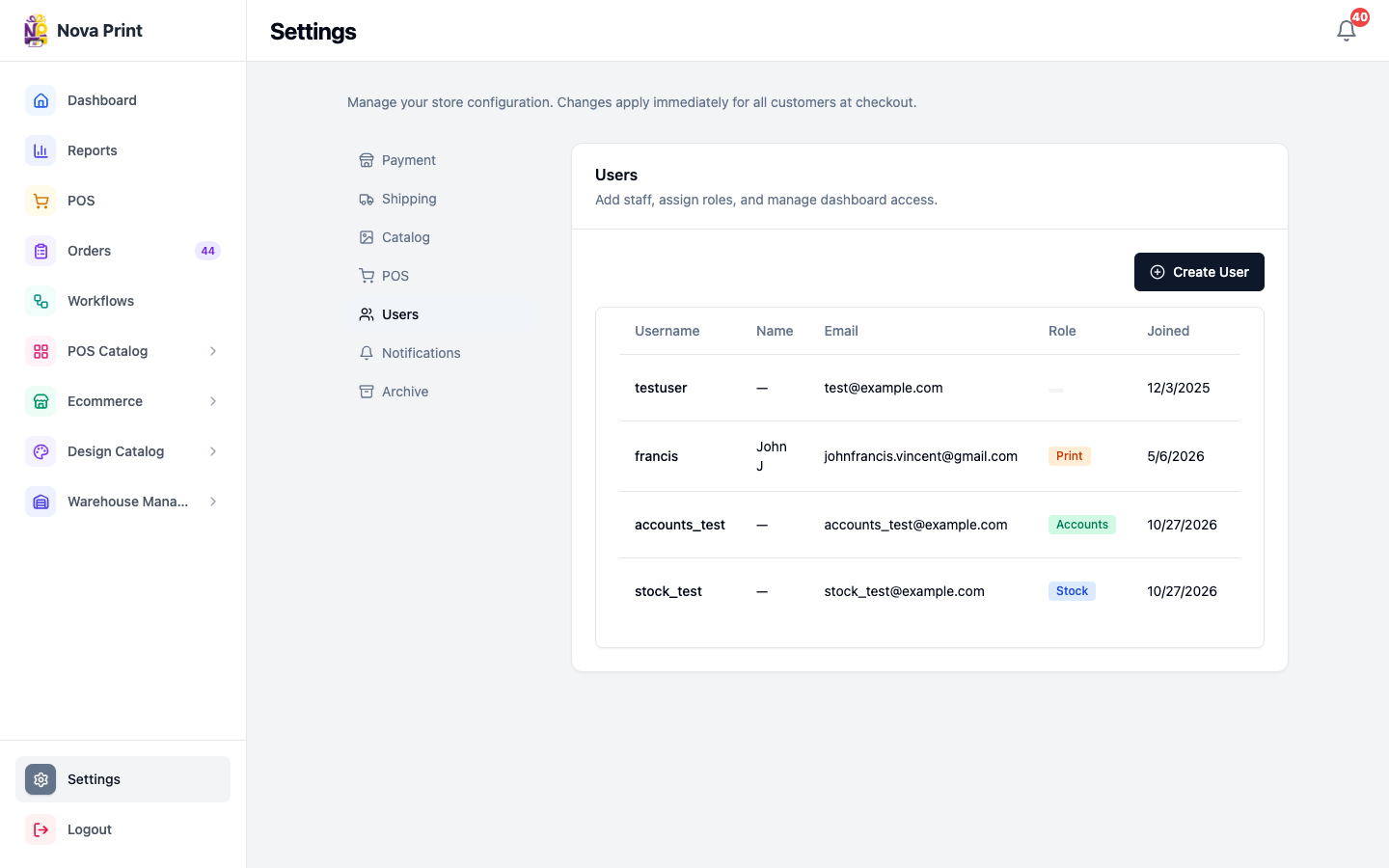
2. Create a user
- Click Create User.
- In Create User, fill:
- **First Name ***
- **Last Name ***
- **Username ***
- **Email ***
- **Role *** (default Stock)
- **Password *** (minimum 8 characters)
- **Confirm Password ***
- Click Create User (pending: Creating…) or Cancel.
- Success toast: User created successfully.
Superuser/staff admins are not created here; they are managed outside this picker (and are excluded from this list API).
3. Edit profile or password
- On a row, click Edit.
- Dialog title: Edit User — {username}.
- Update First Name*, Last Name*, Username*, Email.
- Optional: + Change Password → New Password / Confirm New Password (min 8, must match). Hide with − Hide.
- Click Save Changes (pending: Saving…).
- Success: User updated successfully.
4. Change role
- On the row, click Role → opens Change Role.
- Subtitle: Editing permissions for {username}.
- Select a role card (Selected badge on the active choice).
- Click Save Role (pending: Saving…).
- Success: Role updated successfully.
5. Delete a user
- Click the trash control on the row.
- Confirm:
Delete user "{username}"? This cannot be undone. - Success:
User "{username}" deleted.
6. Forgot / reset password (staff Admin login)
Staff who use the Admin login can reset their own password without another admin editing the user row.
Request a reset link
- On Admin Login (
/login), click Forgot password? - Open
/forgot-password— title Forgot password; Enter your email or username to receive a reset link. - Enter Email or username → Send reset link (busy: Sending...).
- On success, the green confirmation shows the API
detailmessage. Use Back to sign in if needed.
Set a new password
- Open the email link (Admin
/reset-password?uid=…&token=…). - Page title: Set a new password — Choose a new password for your admin account.
- Enter New password and Confirm password (minimum 8 characters; must match).
- Click Reset password (busy: Saving...). On success you are sent to
/login. - If
uid/tokenare missing or invalid: This reset link is invalid or has expired. → Request a new reset link.
Admins can still set a password for another user via Edit → + Change Password (section 3 above). POS terminal unlock passwords are separate — Create a POS terminal.
Checklist
- Staff get the correct operational role for their job.
- Accounts users understand Orders/Reports are read-only for mutations.
- Design vs Print know they share Workflows with stage-limited drag.
- Owners keep at least one staff/superuser admin outside the four operational roles.
- Staff know Forgot password? on Admin login (not the POS unlock screen).