Catalog link customer checkout
When a shop sends a Catalog Link, the customer shops and pays on the POS host (not the classic Checkout app). URL shape:
https://pos.novaorder.in/{posSlug}/catalog/{linkCode}
Local example: http://localhost:3001/{posSlug}/catalog/{linkCode}.
Staff create the link in Create a curated catalog link. Classic customer-link wizard steps: Open a shared checkout link.
Customer
Browse and cart
- Open the catalog URL. Header shows the shop logo/name and the customer name from the link.
- Browse products, custom categories, and design collections; use Add to cart where shown.
- Open Cart (
…/catalog/{linkCode}/cart) from the header cart control (or the mobile View cart bar). - Adjust quantities or Remove lines. Optional Add extras lists cart-addon products when the shop has them.
- Tap Submit. If extras exist and you have not dismissed them yet, a You might also like sheet appears — Continue or Skip extras.
Shipping
Route: /{posSlug}/catalog/{linkCode}/checkout/shipping
- Fill Shipping details — Where should we deliver your order?
- Required: Full name, Address line 1, District, State, Pincode (6 digits), Phone number (10 digits). Address line 2 is optional.
- Tap Continue → summary.
Order summary
Route: …/checkout/summary
- Review line items and the delivery address.
- Tap Continue to payment, or Edit address to go back.
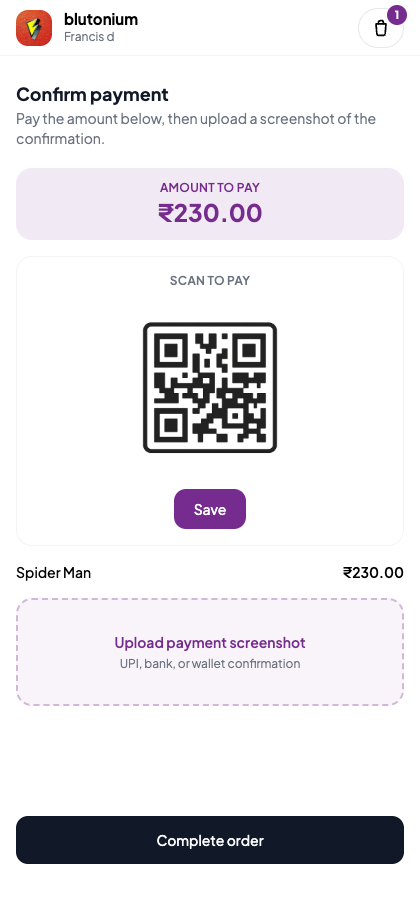
Payment and complete
Route: …/checkout/payment
- Confirm the Amount to pay.
- If a POS Payment QR is configured, Scan to pay shows the QR; optional Save downloads it.
- Upload payment screenshot (UPI, bank, or wallet confirmation).
- Tap Complete order (busy: Placing order…). Screenshot is required.
Success
Route: …/checkout/success (then the catalog root shows live status)
- You see Order placed successfully with an order / link ID and thank-you copy.
- Re-opening the same catalog URL while the order is live shows the order status screen — Status, chat, and approval — not a permanent “already used” wall.
Staff
- After the customer completes payment, the catalog link is consumed (a second submit returns HTTP 410 / already used).
- A Submitted customer-link card appears in POS Link History (often with a Catalog tag) for Convert to order.
- Payment QR for this flow is the terminal’s Settings → Payment QR, not Admin Settings → Payment.
Route map
| Step | Path under /{posSlug}/catalog/{linkCode} |
|---|---|
| Browse | / or /shop |
| Designs | /designs/… |
| Cart | /cart |
| Shipping | /checkout/shipping |
| Summary | /checkout/summary |
| Payment | /checkout/payment |
| Success | /checkout/success |
| Status (after order) | / (order status UI) |