Banners, SEO, and reviews
Admin tools for the storefront homepage slider, search metadata, and how customer reviews work today.
Sidebar Ecommerce (Admin or Stock): Banners (/ecommerce/banners), SEO (/ecommerce/seo), Pages (/ecommerce/pages). Product listings and homepage store settings: Listings and homepage.
Homepage banners
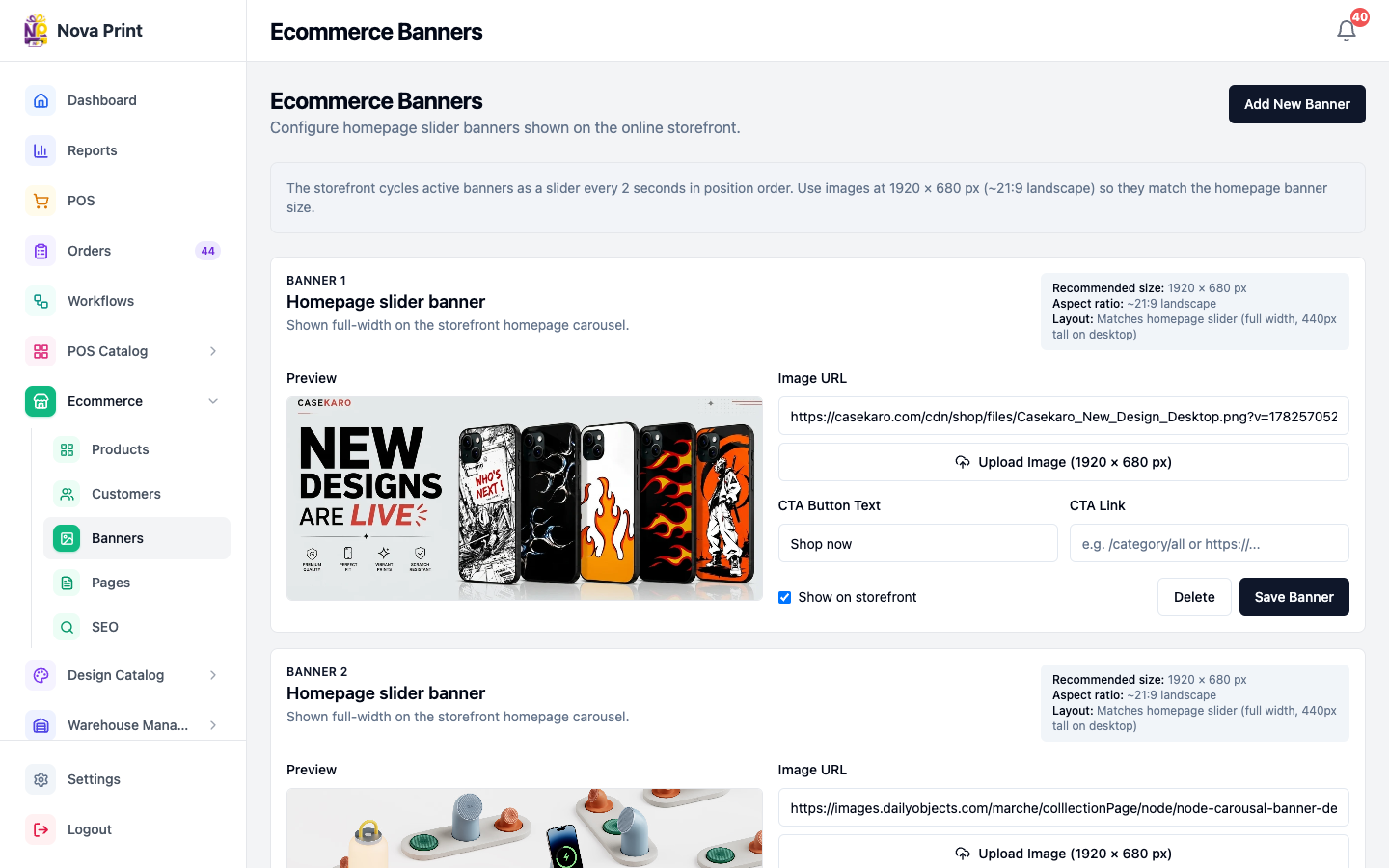
Route: /ecommerce/banners — title Ecommerce Banners; subtitle Configure homepage slider banners shown on the online storefront.
Info box: The storefront cycles active banners as a slider every 2 seconds in position order. Use images at 1920 × 680 px (~21:9 landscape) so they match the homepage banner size.
Add or edit a banner
- Open Ecommerce → Banners.
- Click Add New Banner, or edit an existing Banner {position} slot.
- Upload with Upload Image (1920 × 680 px) or paste an Image URL (placeholder Upload an image or paste a URL).
- Set CTA Button Text (default draft Shop now; placeholder e.g. Shop now) and CTA Link (placeholder e.g. /category/all or https://...).
- Check Show on storefront to make the slide active.
- Click Save Banner (toast Banner Saved). Use Delete to remove a saved banner.
Empty state: No banners yet. Add your first homepage slider banner.
This is separate from POS Catalog → Banner (POS hero), which does not drive the public homepage slider.
Storefront SEO
Route: /ecommerce/seo — title Storefront SEO.
Intro: Titles and descriptions used on the ecommerce storefront. The site name is appended to titles automatically. Products inherit their category description unless you set a product override.
Tabs: Site pages | Categories | Products
Site pages
- Open Site pages.
- Edit each block (Home
/, Contact/contact, Shop All/category/all, Custom Prints/custom, Collections/collections). - Set SEO title and SEO description (soft/max length hints in the form).
- Save one page with its Save control, or use Save all pages.
Categories
- Open Categories.
- Filter with Search categories..., status (All statuses / Missing SEO / Complete), and channel (All channels / Standard live / Custom live).
- Click Edit on a row → dialog for Standard (Category title) and Custom (Custom category title) metadata.
- Save category.
Products
- Open Products.
- Filter by search, category, type (Standard / Custom), and SEO source (Has override / Using category default).
- Edit → optional Product title override; leave empty to inherit category defaults (Use category default).
- Save product.
Policy / about page SEO
About and policy metadata are edited under Ecommerce → Pages (/ecommerce/pages, Storefront Pages) on the About Us, Privacy Policy, Return Policy, and Shipping Policy tabs — not under Storefront SEO → Site pages.
Reviews
Customer (storefront)
Signed-in shoppers can submit reviews on product and design detail pages (Submit review). Guests see prompts such as Sign in to leave a review / Sign in or create account. Reviews appear on the Reviews tab of the product or design page. Step-by-step: Leave a review.
Staff (Admin dashboard)
There is no reviews moderation screen under Admin Ecommerce (no approve / hide / delete UI). Customer-submitted reviews are served by the public ecommerce APIs and are not moderated in the Nova Print admin sidebar today.