Listings and homepage
Publish warehouse products on the ecommerce storefront and manage homepage-facing content (utility bar, banners, featured design collections, static pages).
Who and where
- Roles: Stock, Admin
- Routes:
/ecommerce/products— listings, store settings, fulfillment warehouses, utility bar, payment options/ecommerce/banners— homepage slider banners/ecommerce/pages— About / policy CMS/ecommerce/seo— product/category SEO (related)
- Nav: Ecommerce → Products / Banners / Pages / SEO
Prerequisites: products exist (Create a product), warehouses hold stock (Stock and warehouses). Design home tiles: Collections, groups, and designs.
End-to-end listing path
- Warehouse product exists and is active.
- At least one fulfillment warehouse is enabled for ecommerce.
- For that warehouse, turn Listed on (and optional Trending / New, display price).
- Store Store enabled is on.
- Optional homepage chrome: utility bar, banners, design collections Show on ecommerce home.
1. Open Ecommerce Products
- Sign in to Admin.
- Open Ecommerce → Products (
/ecommerce/products) — Ecommerce Products. - Use tabs: Product Listings, Store Settings, Warehouses, Top Utility Bar, Payment Options.
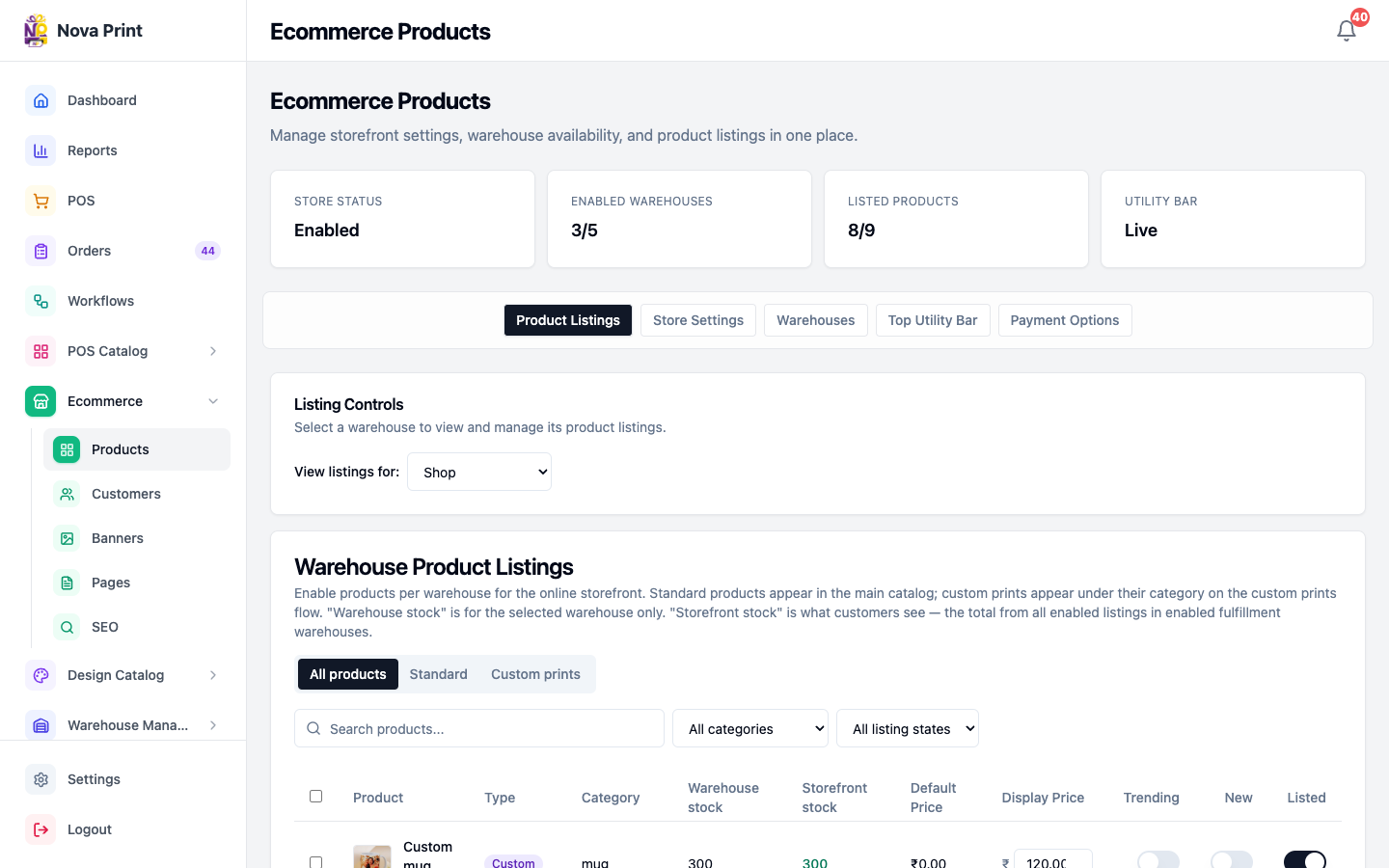
2. Enable the store and warehouses
Store Settings
- Open Store Settings.
- Set Store Name.
- Set Default Shipping (₹).
- Toggle Store enabled / Store disabled (
is_enabledfor the whole storefront). - Click Save Settings.
Warehouses
- Open Warehouses — Fulfillment Warehouses.
- Check each warehouse that may fulfill ecommerce orders.
- Confirm save behavior (Verify in UI — checkbox may save immediately or need a button).
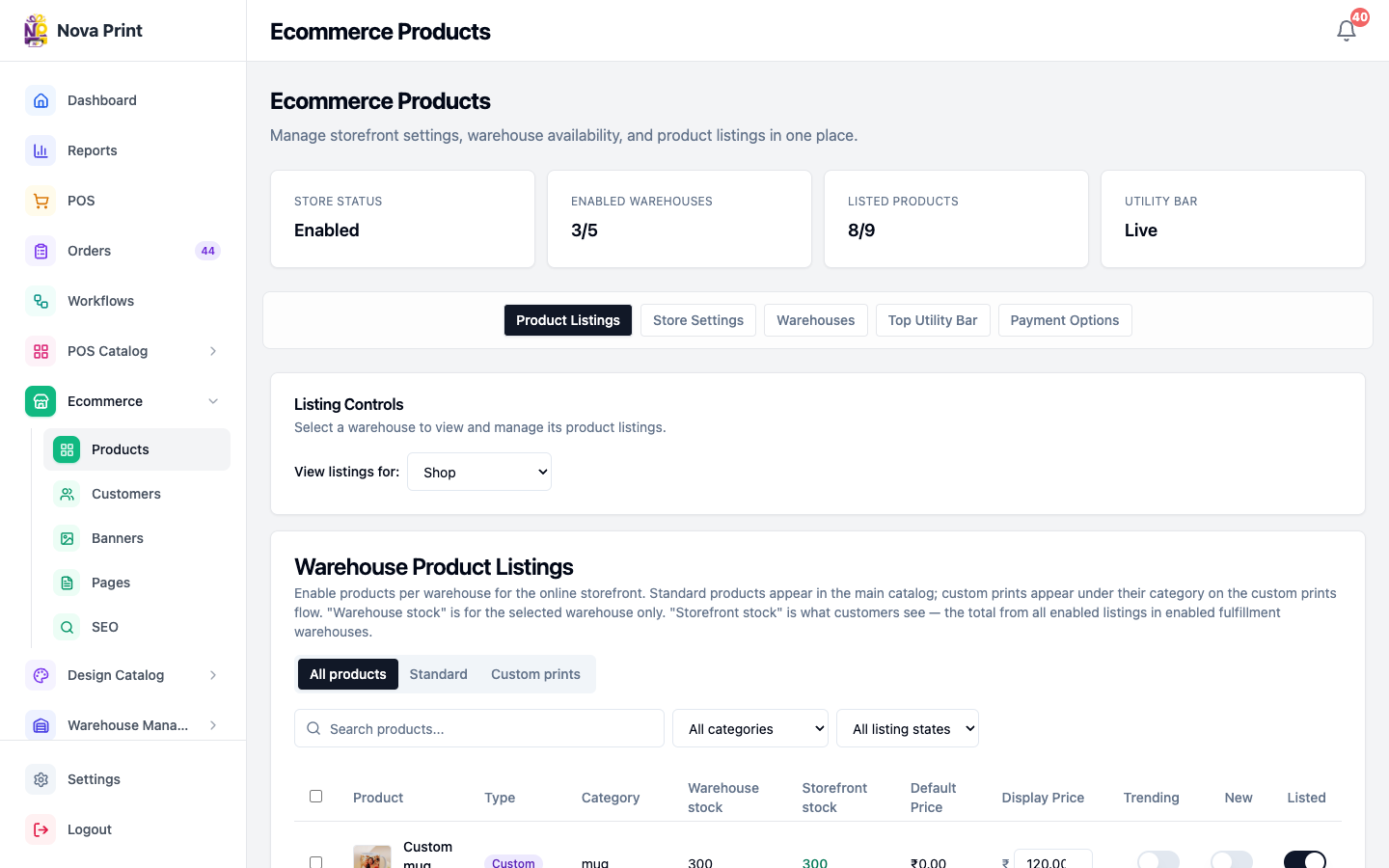
Listings are managed per warehouse. Select the warehouse under View listings for: on Product Listings before toggling Listed.
3. List products
- Open Product Listings — Listing Controls / Warehouse Product Listings.
- Choose View listings for: the fulfillment warehouse.
- Filter: All products | Standard | Custom prints; All categories; All listing states | Listed only | Not listed.
- Per row, set:
- Listed — show on store for that warehouse.
- Trending, New — homepage / merchandising flags.
- Display Price — storefront price for the listing.
- Bulk actions when rows selected: Mark as Trending, Remove Trending, Mark as New, Remove New, List Selected, Unlist Selected.
4. Top utility bar (homepage strip)
- Open Top Utility Bar.
- Enable the bar if needed.
- Edit Marquee items (pipe
|separates items in the stored text). - Optionally pick a color preset (for example Brand Purple).
- Click Save Utility Bar.
This is the promo strip — not the design collection grid.
5. Homepage slider banners
- Open Ecommerce → Banners (
/ecommerce/banners) — Ecommerce Banners. - Click Add New Banner (or edit an existing Homepage slider banner).
- Set Image URL or Upload Image.
- Optionally CTA Button Text and CTA Link.
- Check Show on storefront.
- Click Save Banner (or Delete to remove).
6. Featured design collections on home
Not on the Ecommerce Products page:
- Go to Design Catalog → Collections.
- Enable Show on ecommerce home / Home for Active collections.
Verify in UI how the storefront lays out featured collections vs trending/new product blocks.
7. Static pages (About and policies)
- Open Ecommerce → Pages (
/ecommerce/pages) — Storefront Pages. - Choose a tab: About Us, Privacy Policy, Return Policy, Shipping Policy.
- Edit Title, Subtitle, SEO title, SEO description, Page content (HTML).
- Toggle Published (Show this page on the storefront). Unpublished pages fall back to built-in defaults.
- About only: Hero header (Use the branded gradient hero layout).
- Click Save page.
8. Payment options and SEO (brief)
- Payment Options tab on
/ecommerce/products— configure store payment presentation. Verify in UI for exact fields. - Ecommerce → SEO (
/ecommerce/seo) — product/category SEO overrides, not homepage sections.
Checklist
- Store enabled and shipping defaults set.
- Fulfillment warehouses checked.
- Products Listed for the correct warehouse with display prices.
- Trending / New used only for items you want highlighted.
- Utility bar and banners match current campaigns.
- Design collections intended for home have Show on ecommerce home.
- Policy pages Published when legal content is ready.