Admin Orders board
The Orders kanban is the live board for non-archived shop orders. Move cards by status, open detail for payment and chat, and keep production moving.
Who and where
- Roles: Admin (full mutate); Accounts (view, search, open detail, comments — no drag, status change, payment actions, or delete)
- Route:
/orders(header title Orders) - Nav: Sidebar → Orders (badge shows active order count)
Related: Payment verification and shipping, Design–print pipeline.
Board columns
Columns match order status (exact labels):
| Column | Meaning |
|---|---|
| Placed | New / not yet in production processing |
| Processing | In production; custom items get workflow units when the order enters this status |
| Needs Action | Attention needed (for example approval requested, failed, or cancelled units) |
| Completed | Finished |
| Shipped | Marked shipped (delivery usually needs a tracking ID) |
Archived orders are not on this board. Browse them under Settings → Archive → Archived orders.
Empty column: No orders here. Drop target hint: Drop here to move.
1. Open the board
- Sign in to Admin.
- Open Orders (
/orders). - Optional: search with Search by Order ID, Customer, or POS…
- Optional: filter All POS, or Filter Status → Show Columns to hide columns you do not need.
Deep link: /orders?orderId={id} opens that order’s detail once, then clears the query.
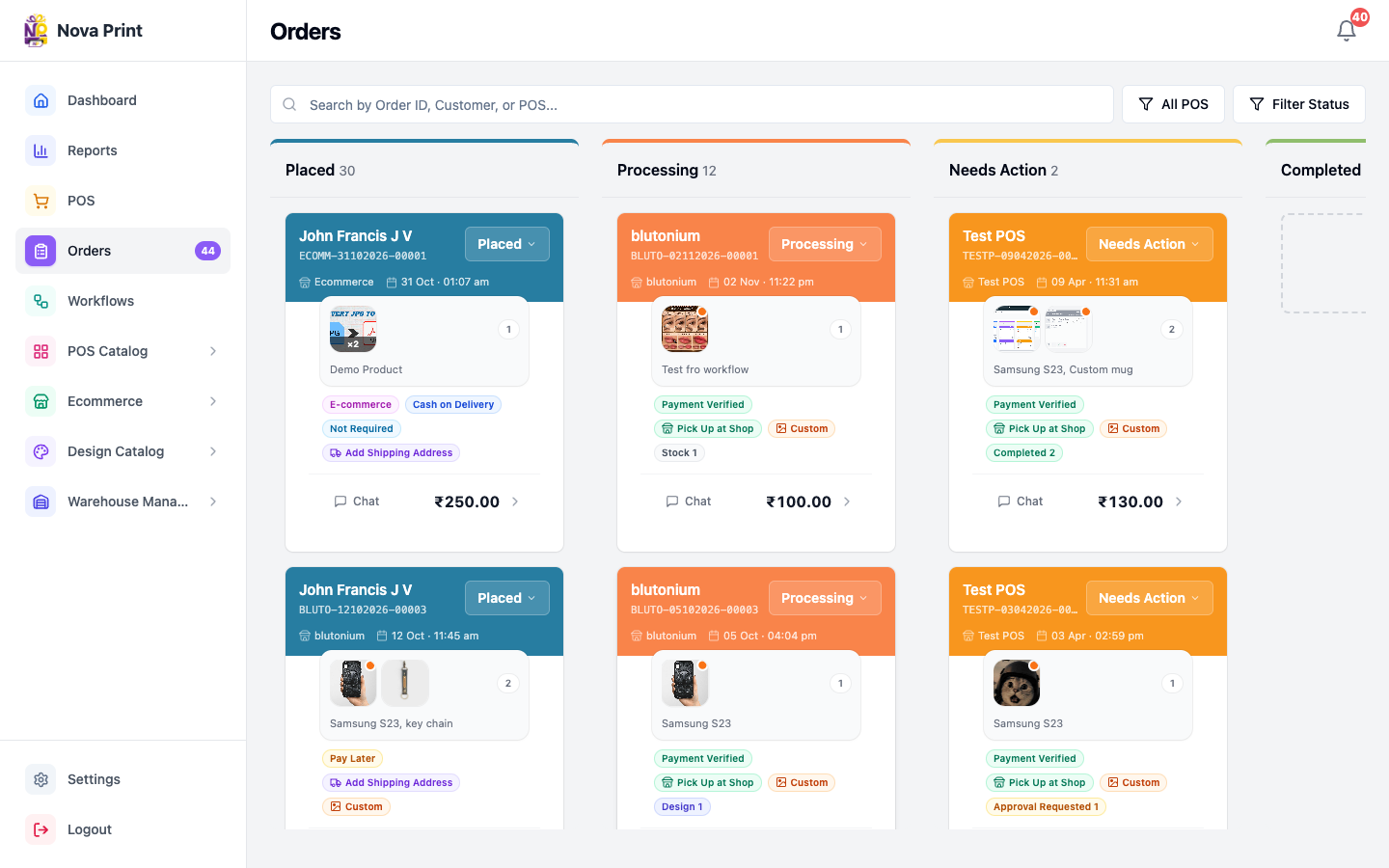
2. Read an order card
Each card shows customer name, order id, status control, payment / shipping badges as applicable, item previews, and footer actions:
- Confirm badges such as Payment Pending, Payment Verified, Cash on Delivery, Razorpay, or shipping type labels (Add Shipping Address, Pick Up at Shop, Ship to My Store).
- Note tags like E-commerce, Custom, or Edit Requested when present.
- Footer: Chat (or comment count), linked-order icon when links exist, and total in ₹.
3. Change order status
Admins only (Accounts is read-only on the board).
- Drag the card to another column, or open Change Status on the card / in detail and pick a status.
- If you choose Shipped for a delivery order with no tracking ID yet, complete Enter Tracking ID (see Payment verification and shipping).
- Confirm the card appears in the new column.
Processing is blocked until payment is Payment Verified or Not Required. Failed updates toast Cannot update status with the server reason.
Moving to Processing bootstraps workflow units for eligible custom items (not service charges) at Stock. Continue on Workflows.
4. Open Order Detail
- Click the card body (not footer chat / status controls alone).
- Header shows Order {id} and Change Status (admins).
- Review Items, Shipping, Payment, optional Edit Request, Linked Orders, and Order Total.
- Use Comments at the bottom for staff/customer chat (Type your message…). Senders appear as Admin, System, or User.
- Close with Close, or delete with Delete Order → confirm (admins only).
From an item with workflow units: Move stage → Update Unit lists allowed next statuses for that unit.
5. Handle an edit request
When a card shows Edit Requested:
- Open Order Detail.
- In Edit Request, choose Approve or Reject.
- Confirm the request state updates on the card.
6. Accounts role on Orders
- Sign in as Accounts (lands on Reports by default).
- Open Orders.
- Search, filter columns, open detail, and use comments.
- Do not expect drag, Change Status, payment Verify / Reject, shipping modal, or Delete Order — those stay admin-only in the UI and API.
Checklist
- Correct POS / search filters before acting on a card.
- Payment verified (or not required) before Processing.
- Tracking ID entered when shipping delivery orders.
- Custom production followed on Workflows after Processing.
- Completed/Shipped cleanup handled via archive settings when ready.