Quick start for customers
Customers reach Nova Print in three main ways. Use the path that matches the link or site you were given.
| Path | Typical URL | Account needed? |
|---|---|---|
| Online shop | https://novaprint.co.in | Optional (helps with saved addresses / faster checkout) |
| Shared checkout link (customer link) | https://store.novaorder.in/{shop}/{code} | No |
| Catalog link | https://pos.novaorder.in/{shop}/catalog/{code} | No |
Local equivalents use ports 3003 (shop), 3002 (checkout), and 3001 (POS/catalog). See Apps and URLs.
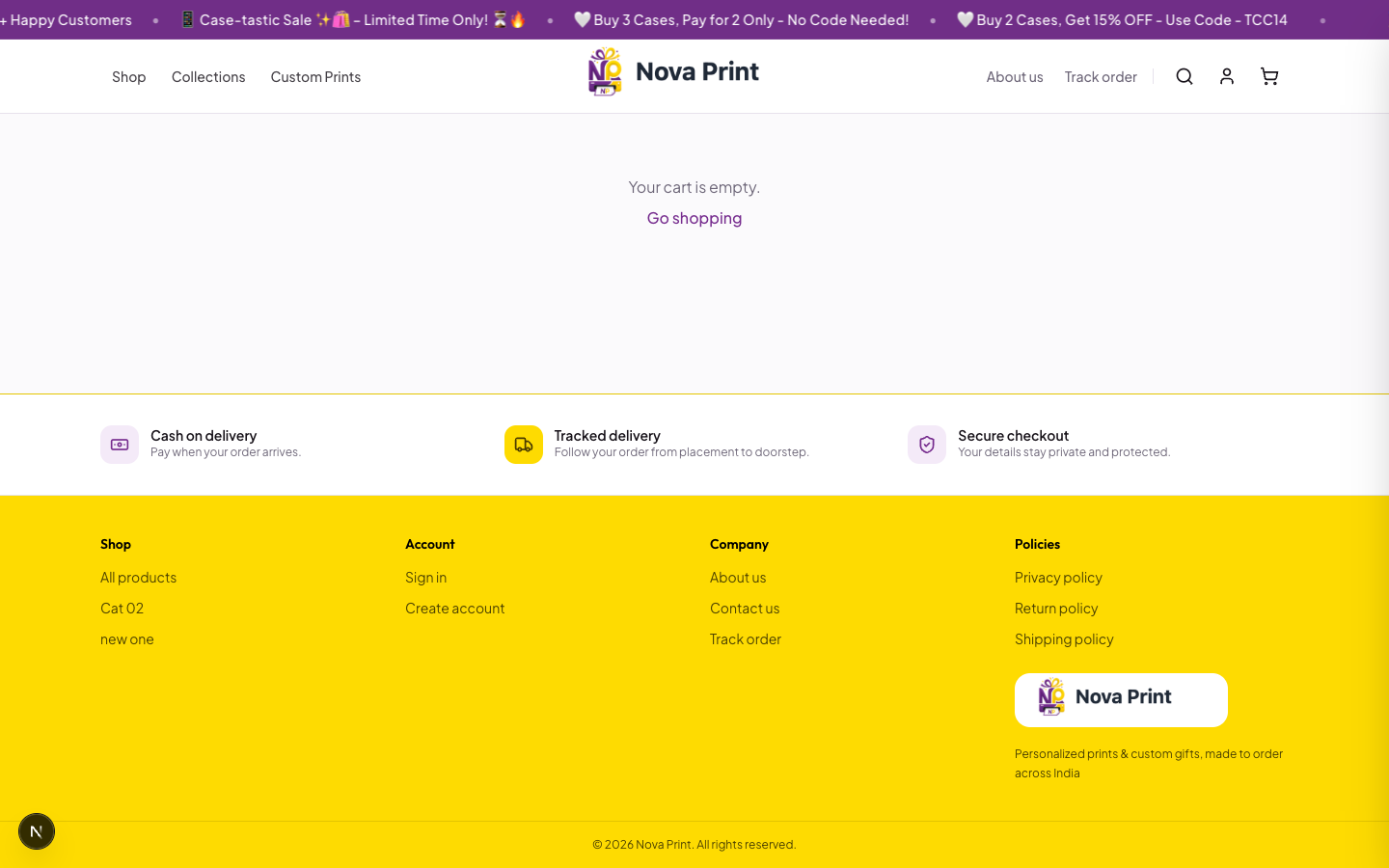
1. Shop on the website
- Open the storefront (
https://novaprint.co.inor your local store URL). - Browse products and add items to the cart.
- Optional: Register or Log in under Account (
/account/register,/account/login) with email and password. - Open Checkout, enter shipping details, and choose a payment method.
- When enabled by the store, payment options include Cash on Delivery (COD) and Razorpay (UPI / cards / net banking). Only methods shown in the UI are available — Verify in UI.
- After success, use the confirmation / account Orders area to track what the store exposes publicly.
2. Shared checkout link (customer link)
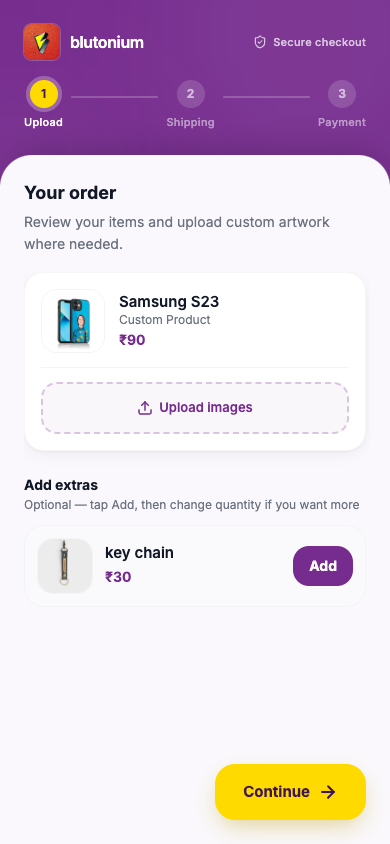
Staff create a Customer Link in POS for a named customer with specific products already selected. You receive a URL on the Checkout host.
- Open the link you were sent (pattern:
…/{pos-slug}/{link-code}onstore.novaorder.in). - Follow the on-screen steps (typically upload artwork → shipping → payment).
- Complete payment the way the link instructs (often payment proof / UPI QR configured for that POS). Verify in UI for exact steps and labels.
- After submit, you may get an order success screen and chat with the shop — Verify in UI.
Do not edit the URL by hand. If the link is expired, used, or invalid, ask the store for a new one.
3. Catalog link
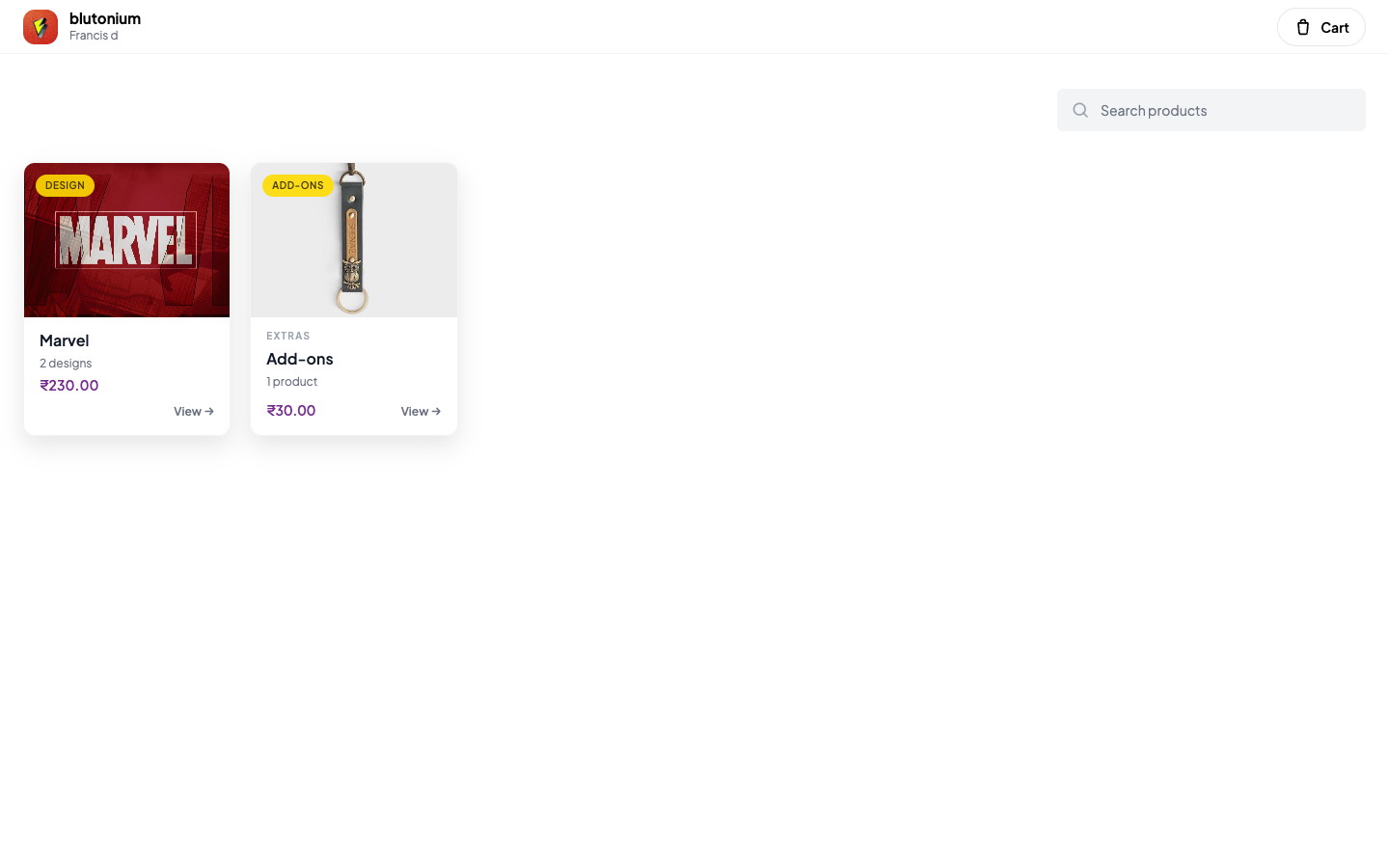
Staff create a Catalog Link so you can browse a curated catalog (often without browsing the full public website). The link is hosted on the POS domain.
- Open the catalog URL (pattern:
…/{pos-slug}/catalog/{link-code}onpos.novaorder.in). - Browse collections / designs / products the shop included.
- Select what you want and continue through the catalog checkout steps (shipping / payment as shown).
- Return to the same link later if the shop told you it stays open — Verify in UI for status and re-entry behavior.
Which one do I have?
- Host is novaprint.co.in (or the public shop name) → website shopping.
- Host is store.novaorder.in with two path segments after the domain → shared customer / checkout link.
- Host is pos.novaorder.in and the path contains
/catalog/→ catalog link.
If you are unsure, send the full URL back to the shop and ask which flow they intended.
Support
Contact details on the storefront (email/phone) come from store configuration. Prefer the chat or contact options on the page you already have open when using a customer or catalog link.