Quick start for staff
First-day checklist for operators: sign into Admin, confirm warehouse basics, then unlock POS.
Assumes someone already created your Admin user (or superuser) and at least one POS terminal. Production URLs: Apps and URLs. Roles: Roles overview.
1. Sign in to Admin
- Open Admin (
https://admin.novaorder.inorhttp://localhost:3000). - Go to Login if you are not already there.
- Enter your username and password.
- Confirm you land on the page for your role (dashboard, warehouse products, workflows, or reports).
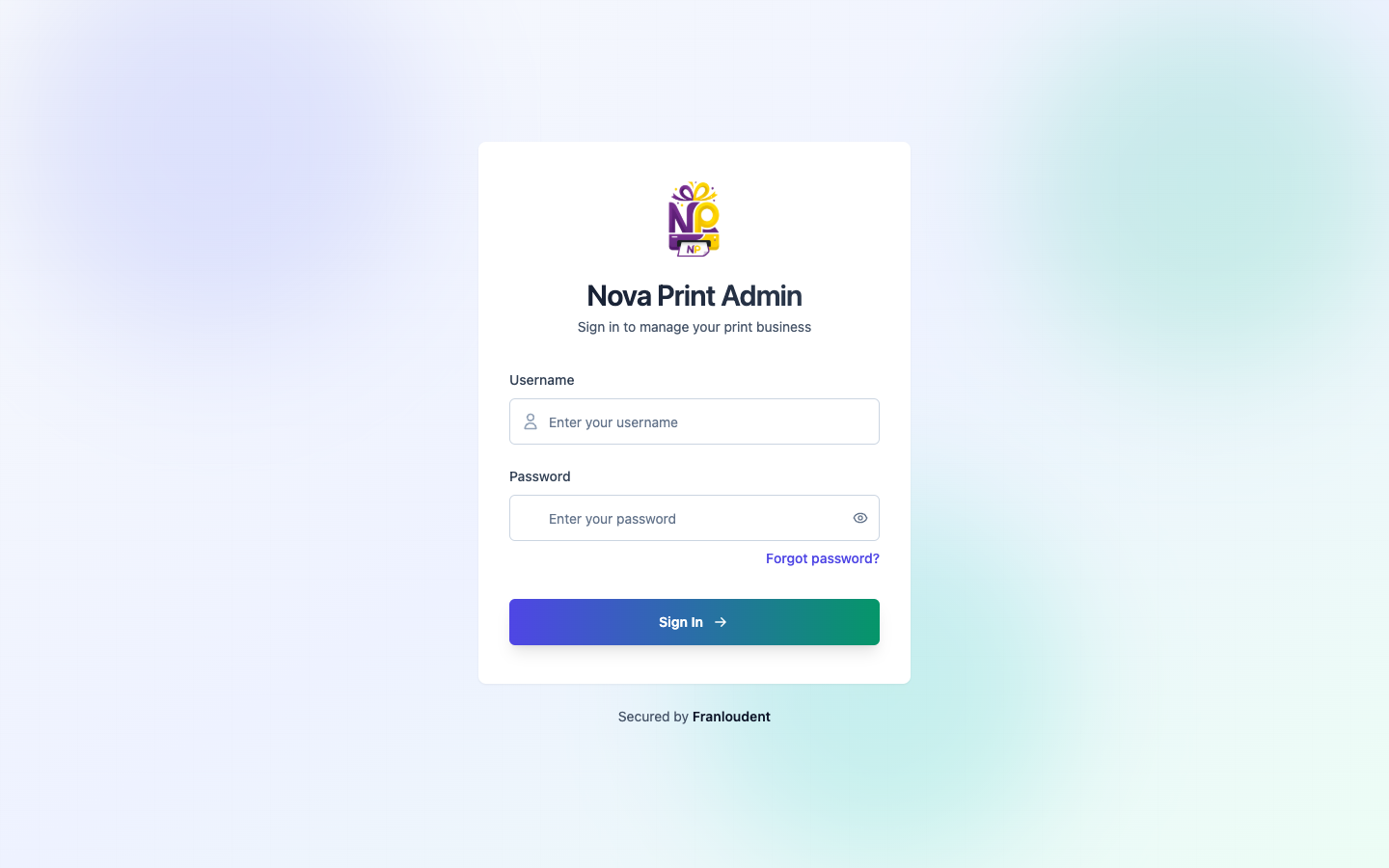
If login fails, ask an admin to confirm your account is active and has a role (or staff/superuser flags).
Forgot your Admin password? On /login use Forgot password? → /forgot-password, then the email link to /reset-password — Users and roles. This does not reset a POS terminal unlock password.
2. Warehouse basics (stock / admin)
Skip this section if your role is design, print, or accounts only.
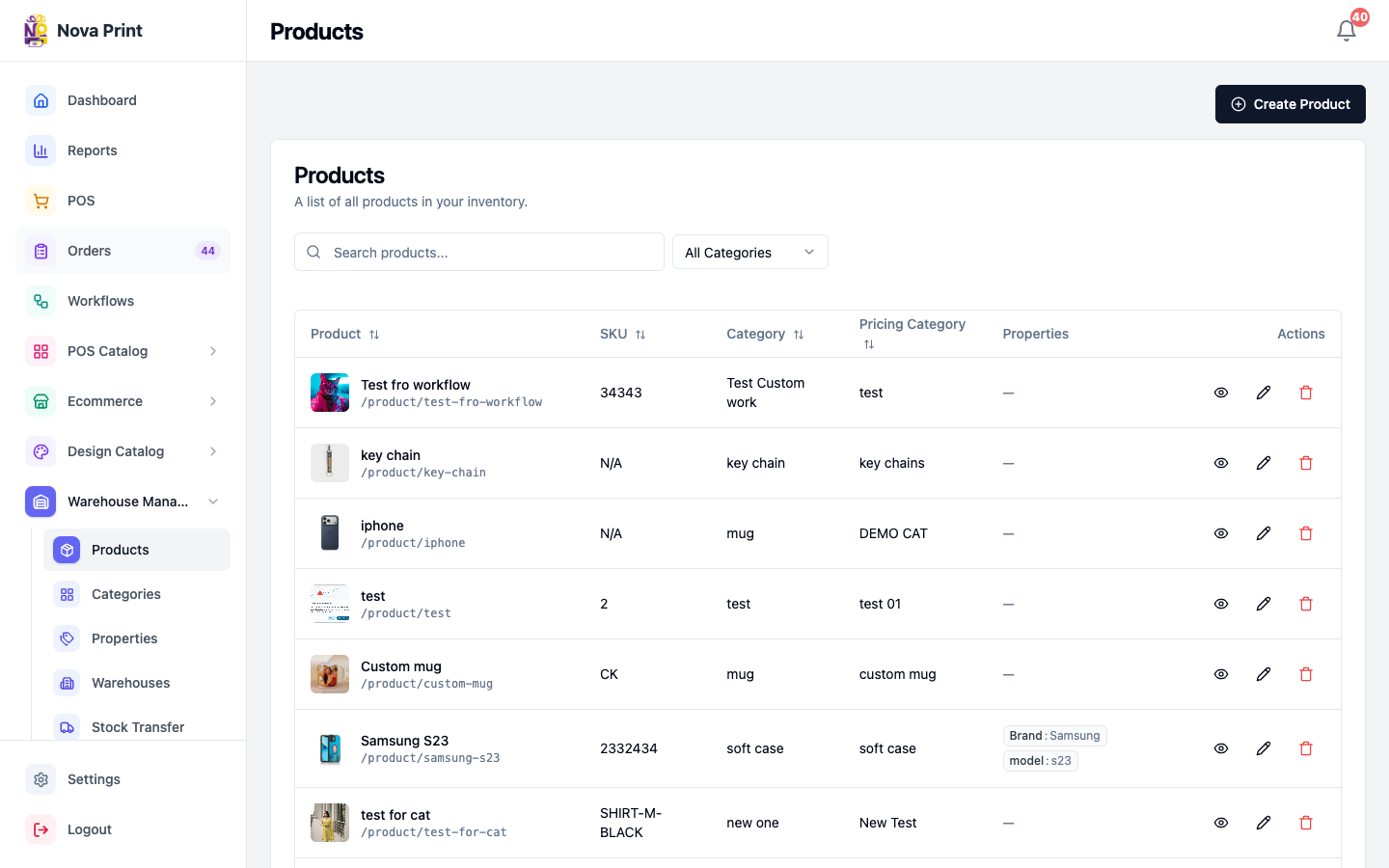
- Open Warehouse Management → Products (
/warehouse/products). - Confirm products you expect to sell are listed. Verify in UI for create/edit flows and required fields.
- Open Warehouses (
/warehouse/warehouses) and confirm stock locations exist. - Optional: Categories, Properties, and Stock Transfer under the same menu — use when your manager walks you through inventory setup.
- Stock/admin users also manage POS Catalog and Ecommerce / Design Catalog content used by POS and the public store. Only change what you have been trained to maintain.
3. Confirm a POS terminal exists
Admin-only:
- Open POS in the Admin nav (
/pos) or Settings → POS Terminals. - Find your counter in the list and open its details.
- Copy the POS URL (includes the terminal slug).
- Confirm the terminal is Active (not locked). If locked, unlock per your process — Verify in UI.
You need the terminal password (set when the POS was created/edited). It is separate from your Admin password.
4. Unlock POS and smoke-test
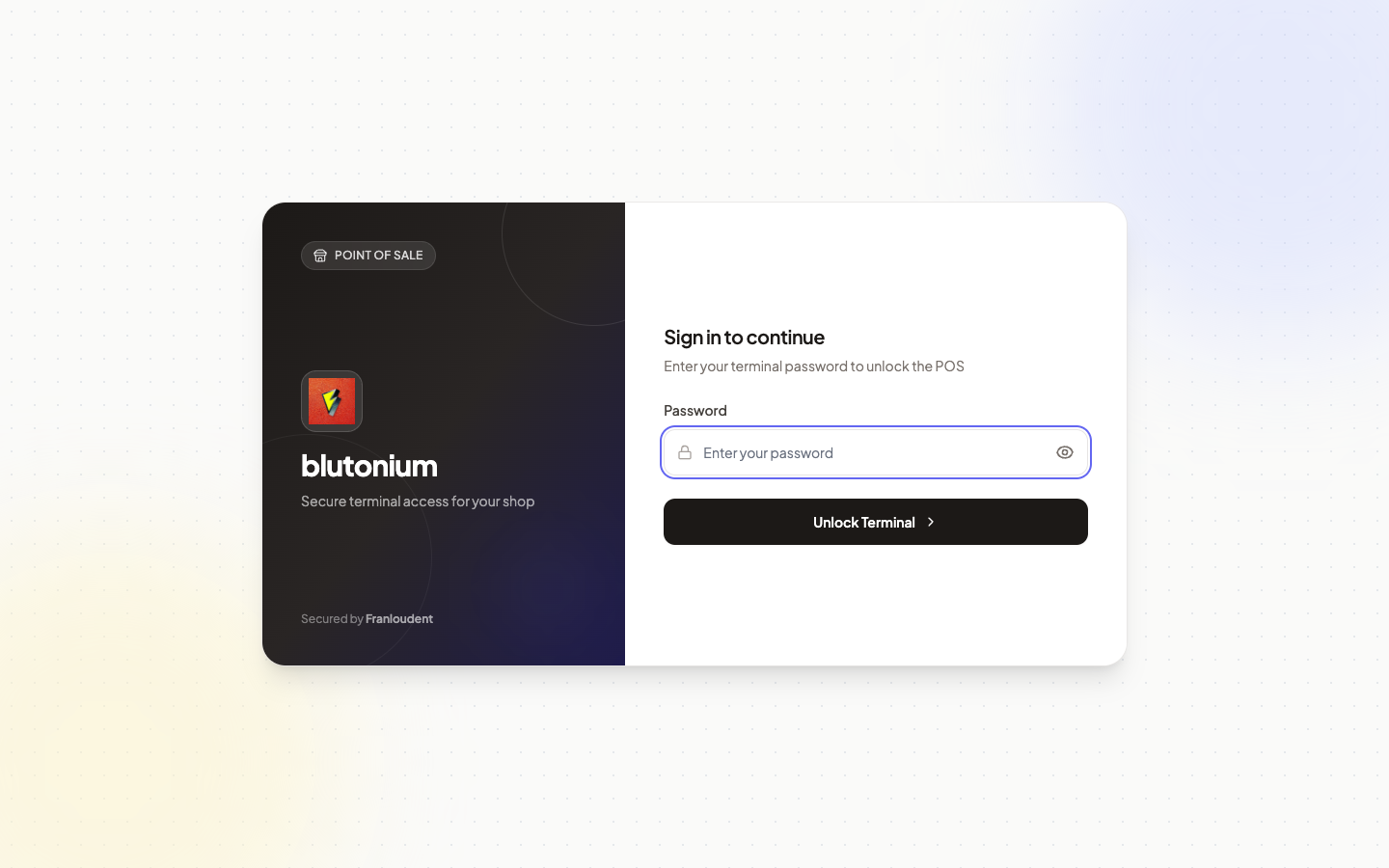
- Open the POS URL in a browser (or tablet) at the counter.
- Enter the terminal password to unlock.
- Confirm the catalog / POS screens load for that shop.
- Optional smoke tests (Verify in UI for exact button names):
- Start a simple in-store cart / checkout path on POS.
- Create a Customer Link (named customer + products) and copy the link — should open on Checkout (
store.novaorder.in/ local port3002). - Create a Catalog Link and copy it — should open on the POS host under
/{slug}/catalog/{code}.
- In POS Settings, confirm store address / UPI QR if your store uses customer-link payment proof. Verify in UI.
5. Know where orders show up
| Channel | Where staff usually look |
|---|---|
| POS / customer links | POS order history + Admin Orders (admin/accounts) |
| Design/print work | Admin Workflows |
| Ecommerce website orders | Admin Orders / ecommerce tools — Verify in UI for filters by channel |
Day-one done when
- You can sign into Admin with your assigned role.
- You know whether warehouse/catalog edits are part of your job.
- You can open and unlock your POS terminal.
- You know the difference between a customer link and a catalog link to send customers (customer quick start).